
Using Script Properties can be cleaner than hard-coded constants for global configuration settings. For example, suppose you have an Apps Script that builds a report based on a template document and destination folder. You might define the following CONFIG constants:
/**
 * Example constants defined in Code.gs
 */
const CONFIG = {
  // The ID of the Google Document that is copied as a template
  TEMPLATE_DOC_ID: 'YOUR_TEMPLATE_DOC_ID_HERE',

  // The ID of the Drive folder where created documents will be saved
  TARGET_FOLDER_ID: 'YOUR_DRIVE_FOLDER_ID_HERE',
};Instead of hard coding these values, you can manage them as script properties. Script properties are changed through the App Scripts editor rather than the source code.
Here is the prior CONFIG object, rewritten to be syntactically compatible–but using script properties instead of hard-coded values.
const CONFIG = (() => {
  const props = PropertiesService.getScriptProperties();
  return {
    TEMPLATE_DOC_ID: props.getProperty('TEMPLATE_DOC_ID'),
    TARGET_FOLDER_ID: props.getProperty('DIARY_FOLDER_ID')
  };
})();How the code works
PropertiesService is a global object available to your scripts. It has a method called getScriptProperties, which returns a Properties object. The Properties object is a collection of key/value pairs. You can fetch an individual property with the getProperty method.
How to add, edit, and remove script properties
Instead of changing the source code, you manage properties in the project settings.
- Open the project.
- Click Project settings (gear icon) in the left panel.
- Scroll down to Script properties
- Click Add script property (first time) or Edit script properties subsequently
- Set the property name and value
- To remove a property, click the X button next to the property.
- Click Save script properties
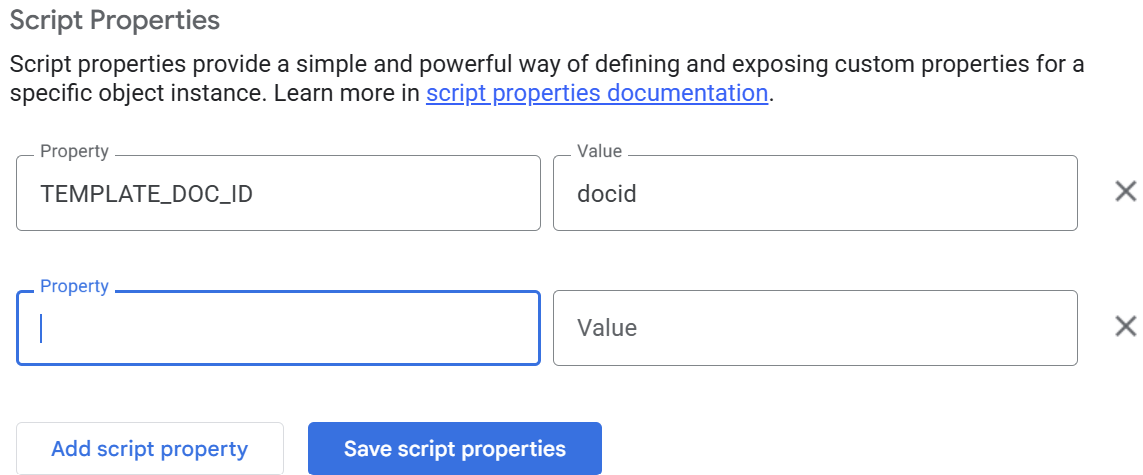
⚠️ Property names are case-sensitive, e.g., TEMPLATE_DOC_ID is different than Template_Doc_ID. Use the exact capitalization as your code.
💡 Property values may contain trailing spaces and will not be trimmed when saved.
Development vs. Production
There is exactly one set of script properties per project, and these properties are shared between all deployments. This means:
⚠️ If you modify a script property in development, any deployed version of the script will see those changes. The script properties are not isolated per deployment. Each project has a single shared set of properties, shared between all deployments.
If this is a problem, you can create a separate project to represent the production version. As a separate project, it will have its own set of script properties. To deploy production updates, you’ll need to copy changes from your development script to your production script. A tool like clasp can help automate this process.
Document and user-scoped properties
This guide discusses script properties, but you may also be interested in user- and document-scoped properties. A user-scoped property is separate for each user. A document-scoped property is separate for each document. The code is largely identical, except you call a different method on the PropertiesService global object.
| Method | Return Type | Description |
|---|---|---|
| .getDocumentProperties | Properties | Returns properties scoped to the current document (each document has its own settings). Returns null in stand-alone scripts that do not have an associated document. |
| .getScriptProperties | Properties | Returns properties scoped to the current script (the example in this how-to guide). |
| .getUserProperties | Properties | Returns properties scoped to the current user (each user has their own settings, and settings cannot be seen by other users). |
Unfortunately, there is no built-in UI for managing user and document properties. You’ll need to provide that UI in your script.
Limits and quotas of properties
The maximum size of a property is 9 kilobytes. For each of the three property stores (document, script, user), the size of each one cannot exceed 500 kilobytes. Additionally, there is a quota on reading and writing properties. On consumer accounts, you can read and write properties 50,000 times per day. On Google Workspace accounts, you can read and write properties 500,000 times per day. These limits may change – refer to Quotas for Google Services for the latest limits.
References
- Properties Service (developers.google.com) – This service allows scripts to store strings as key-value pairs scoped to one script, one user of a script, or one document in which an editor add-on is used.
- Class Properties (developers.google.com) – The properties object acts as the interface to access user, document, or script properties.
- Quotas for Google Services (developers.google.com) – Google Apps Script services have daily quotas and limitations on some features. If you exceed a quota or limitation, your script throws an exception and execution stops.

 You are free to share and adapt this content for any purpose as long as you give appropriate credit in a reasonable manner.
Leave a Reply