
Certain PowerShell operations require administrative rights. If you get blocked while attempting to perform such an operation, there are several ways to restart PowerShell as an administrator.
1️⃣ Select Run as Administrator on the Start menu
- Open the Start menu.
- Start typing PowerShell (any capitalization) but don’t press Enter yet.
- Select Run as Administrator when it appears under the Windows PowerShell icon.
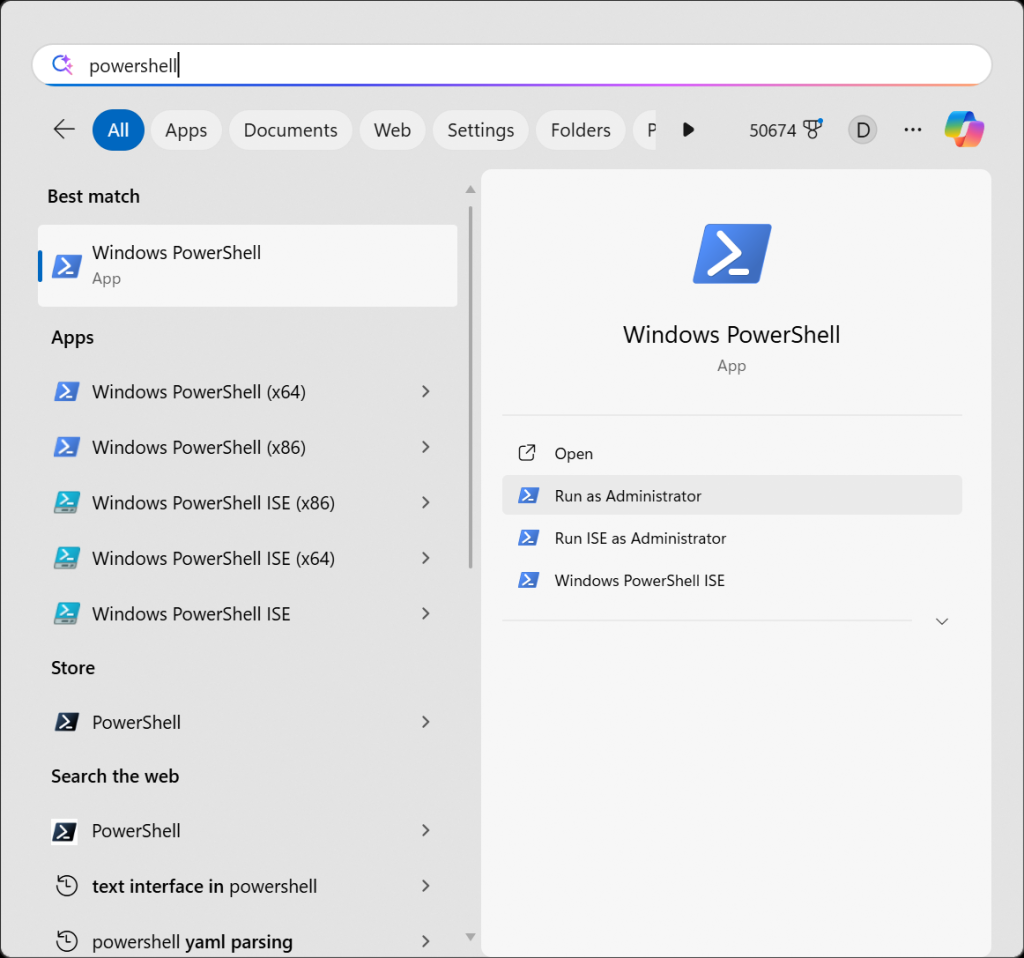
Tip: Click Run ISE as Administrator to open the Integrated Scripting Environment, which is a special editor and environment for PowerShell.
2️⃣ Press Ctrl + Shift + Enter on the Start menu
This trick works for any app on the Start menu: type enough characters to get the app to appear, and then press Ctrl + Shift + Enter to run an elevated session.
- Open the Start menu
- Start typing PowerShell (any capitalization)
- When Windows PowerShell appears, don’t hit Enter yet
- Press Ctrl + Shift + Enter to run as an administrator
3️⃣ Right-Click Windows PowerShell in Terminal
In the Windows Terminal app, click the down arrow button (˅) on the tab bar. Right-click Windows PowerShell to get the option to Run as administrator.
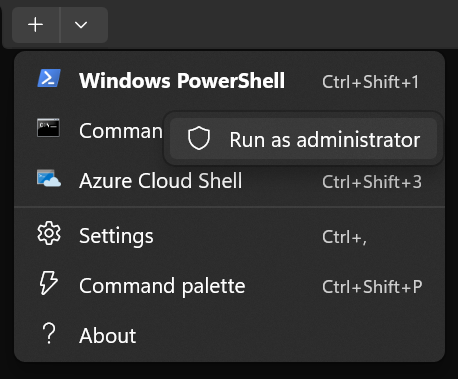
4️⃣ Ctrl-Click Windows PowerShell in Terminal
In the Windows Terminal app, click the down arrow button (˅) on the tab bar. Hold down the control key while clicking Windows PowerShell to start the session as an administrator.
5️⃣ Run PowerShell as Administrator by default
You can set Terminal to always run PowerShell as an administrator. This is not necessarily a good idea: administrator-mode is disabled by default to prevent accidental damage. But if you insist, first open the settings page in Terminal:
- Press Ctrl + comma, or
- Click the down arrow button and select Settings
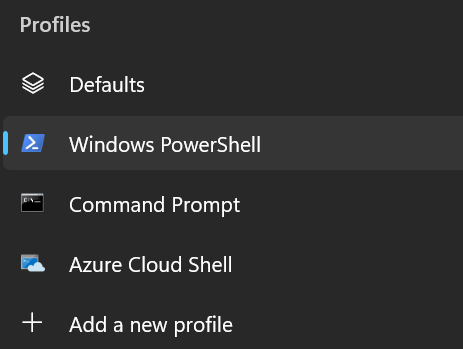
On the side menu, click Windows PowerShell under Profiles:
Scroll down and enable Run this profile as Administrator:
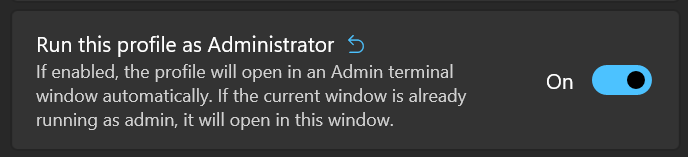
Click Save on the bottom.
Frequently Asked Questions
Can I elevate an already open PowerShell window?
No. You must close and reopen PowerShell.
How do I know if PowerShell is running as Administrator?
The window title will say “Administrator: Windows PowerShell” and you may see a UAC prompt when launching.
How can I test in code whether the current session is running as an Administrator?
Execute the following expression, which returns true or false:
([Security.Principal.WindowsPrincipal] [Security.Principal.WindowsIdentity]::GetCurrent()).IsInRole([Security.Principal.WindowsBuiltInRole]::Administrator)This command checks whether the current Windows identity (your user session) belongs to the Administrator role using .NET’s WindowsPrincipal class.

 You are free to share and adapt this content for any purpose as long as you give appropriate credit in a reasonable manner.
Leave a Reply