
Connecting Claude to Square allows you to ask questions about your business in plain English. You can ask about sales trends, customer activity, appointments, inventory, and more. When configured with read-only access, connecting Claude is safe. You can enable Claude to make changes once you have some experience using it.
Instructions
These instructions work on both desktop and web.
1. Open Settings > Connectors in Claude
The Claude settings window has a section for configuring connectors. To get there:
- Sign into Claude (either desktop or web)
- Click your name in the lower-left corner.
- Select Settings
- Select Connectors in the side menu
💡 Tip: in the desktop app, press Ctrl + Comma as a shortcut to open settings.
2. Click Discover in Connectors
Click the Discover button (located on top of the Connectors screen). This will show available connectors. A connector allows Claude to interact with external apps such as Square.
💡 Tip: You can also browse and install connectors at https://claude.ai/directory.
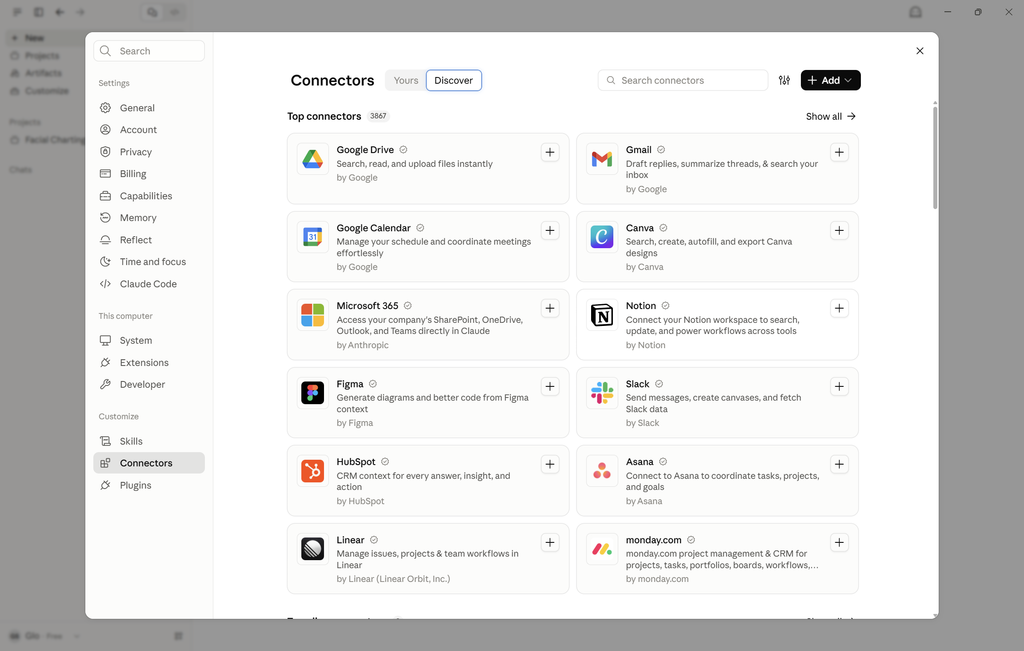
3. Search for Square
Type Square in the search box (located in the upper-right corner).
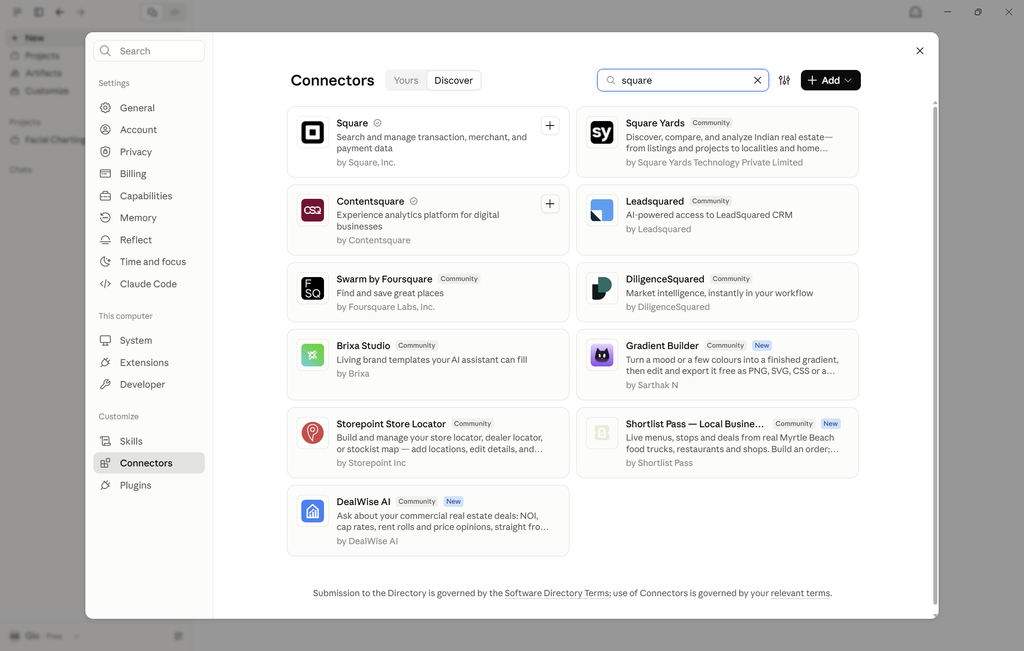
4. Ensure you found the official Square connector
Click Square in the search results. Review the details carefully to confirm you found the official connector:
- The logo should be the official Square logo.
- The name under MADE BY should be Square, Inc.
- The link under MADE BY should open the squareup.com home page.
- The connector URL should be https://mcp.squareup.com/mcp
If you see any mismatches, do not proceed.
5. Click Connect to Claude
A new page will open in your browser.
⚠️ If you use multiple browser profiles but the wrong profile opens:
- This happens when your operating system is unsure of which profile to use when launching a link from a desktop app.
- You can copy & paste the address to a new tab or window in your preferred profile.
- If that does not work, open your preferred profile and interact with any webpage. The trick is to make your preferred profile the most recent one you used. Then, go back and re-click Connect to Claude. The link should open in your preferred profile.
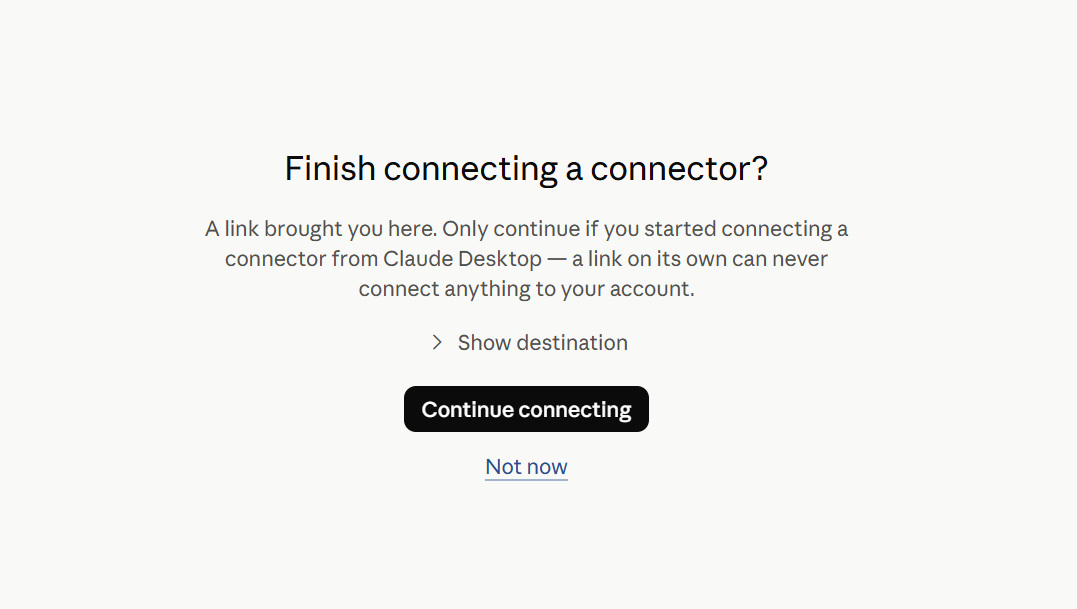
6. Click Continue connecting (desktop only)
This warning appears if you started the connection through the desktop app. It is safe to click Continue connecting unless you got to this page through some other link (in which case you should abort immediately).
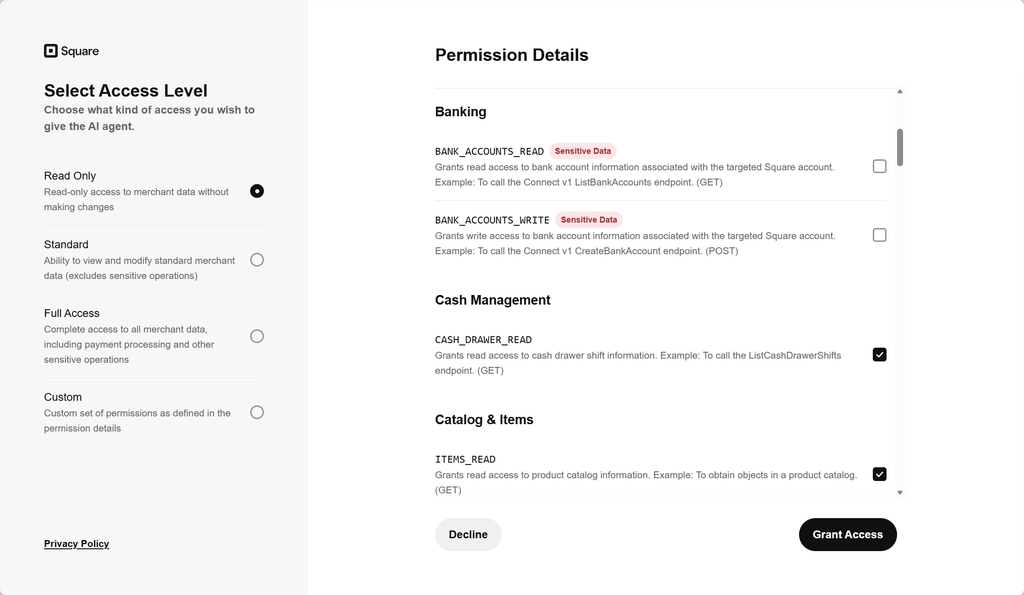
7. Select read-only permissions
In this step, you decide how Claude can use each type of data (e.g., banking, appointments, etc.). For each type of data, you can decide whether Claude has read or write access.
Always start with the minimum safe permissions. You can change permissions later, so stay safe now.
- On the left side, ensure Read Only is selected. This prevents Claude from making any changes to your data.
- On the right side, confirm the permission details are OK. Since you selected Read Only, you should not see any WRITE permissions. However, there are a few types of data that Square considers sensitive. These are off by default, but you can enable them if you want to query that type of data with Claude.
Click Grant access when ready. Authenticate if prompted.
8. Return to the app (desktop only)
If you started the connection through the desktop app, you’ll be directed back to the app now. You may get a popup that says This site is trying to open Claude. If so, click Open.
💡 If you don’t want this popup in the future, select Always allow claude.ai to open links of this type in the associated app.
9. Confirm the connection
On both web and desktop, confirm you see Connected in the connector settings.
10. Set read-only tools to Always Approve
On the connector settings, you will see a list of Tool permissions. A better description would be Tool approvals, as this list tracks which tools Claude is approved to use.
By default, Claude will ask for approval every time it wants to talk to Square in response to your questions. There are four ways that Claude can talk to Square, shown as “tools” in the connection settings. Notice that three of the tools are read-only and one of the tools is write/delete.
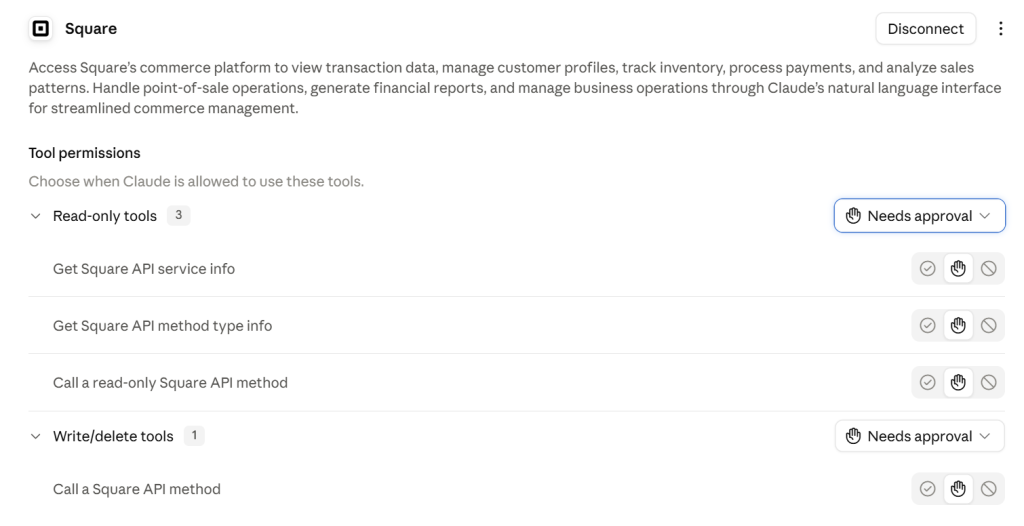
You can safely set the read-only tools to Always allow. This will reduce the number of times you get prompted for approval. However, always set write/delete tools to Needs approval. This will force Claude to ask for approval before making changes.
| Tool | Description | Recommended Setting |
|---|---|---|
| Get Square API service info | Allows Claude to inspect the Square API so it can use it correctly | Always Allow |
| Get Square API method type info | Allows Claude to inspect specific operations of the Square API so it can invoke them correctly | Always Allow |
| Call a read-only Square API method | Allows Claude to invoke an operation that reads data, e.g., sales records. | Always Allow |
| Call a Square API method (write/delete) | Allows Claude to invoke an operation that modifies or deletes data. | Needs approval |
11. Try doing something with Claude and Square
Open a new chat and make a request such as “Summarize yesterday’s sales”.
Depending on your tool permissions, you may get prompted for approval:
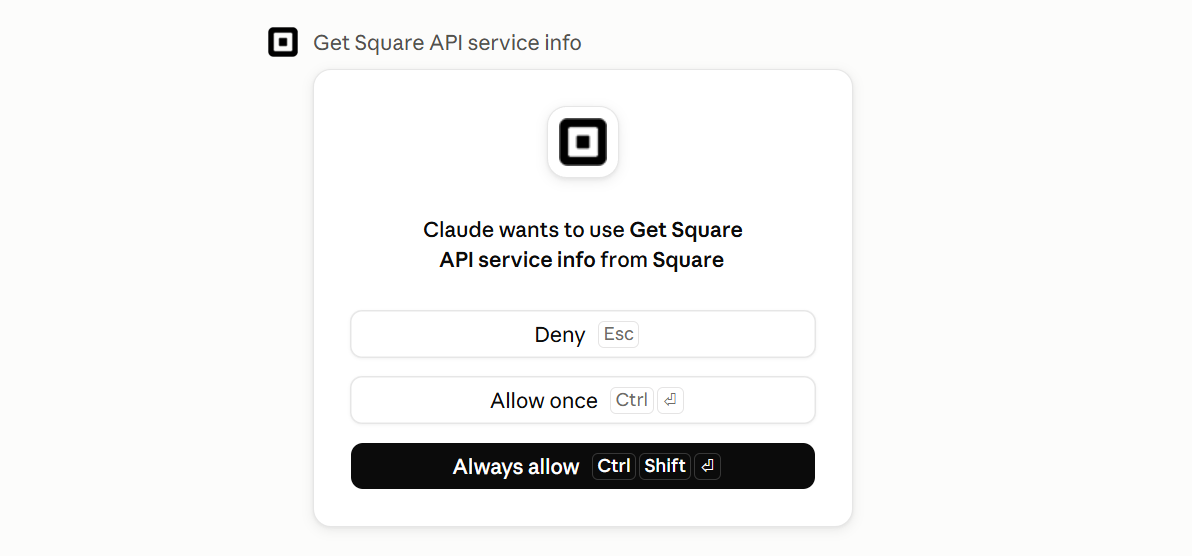
As noted in step 10, you can safely approve Claude for the following:
- Get Square API service info
- Get Square API method type info
- Call a read-only Square API method
However, be careful if you get asked to approve a write/delete operation:
- Call a Square API method (write/delete)
If you intended to modify or delete data, you can select Allow once. But never select Always allow, which gives Claude blanket permission to write and delete data without asking you first.
Note: if you do try to modify data, you will need to go back to the connection permissions (step 7) and enable write access to that type of data. Consider revoking those permissions when you are finished.
Further reading
- Use connectors to extend Claude’s capabilities (support.claude.com) – This guide explains how to enable and use connectors with Claude to enhance its capabilities.
- Square Model Context Protocol Server (developer.squareup.com) – The Square Model Context Protocol (MCP) server implements the Model Context Protocol standard, providing a bridge between AI assistants and the Square REST API platform.

 You are free to share and adapt this content for any purpose as long as you give appropriate credit in a reasonable manner.
Leave a Reply