
When you Auto Save in Visual Studio Code, the editor automatically saves changes without requiring action from you. In some workflows, this can save time and frustration. For example, it prevents you from staging an unsaved file in Git. There are several ways to enable auto saving, which you can set globally to your user preferences, or specifically to a workspace.
Quickly toggle Auto Save with the File menu
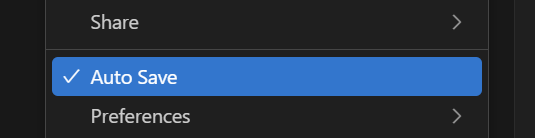
To quickly enable auto saving, open the File menu and toggle Auto Save. A checkbox means Auto Save is on. When you enable auto saving in this manner, VS Code defaults to saving after a delay (the afterDelay setting as described below).
For advanced options, search for “Auto Save” in Settings
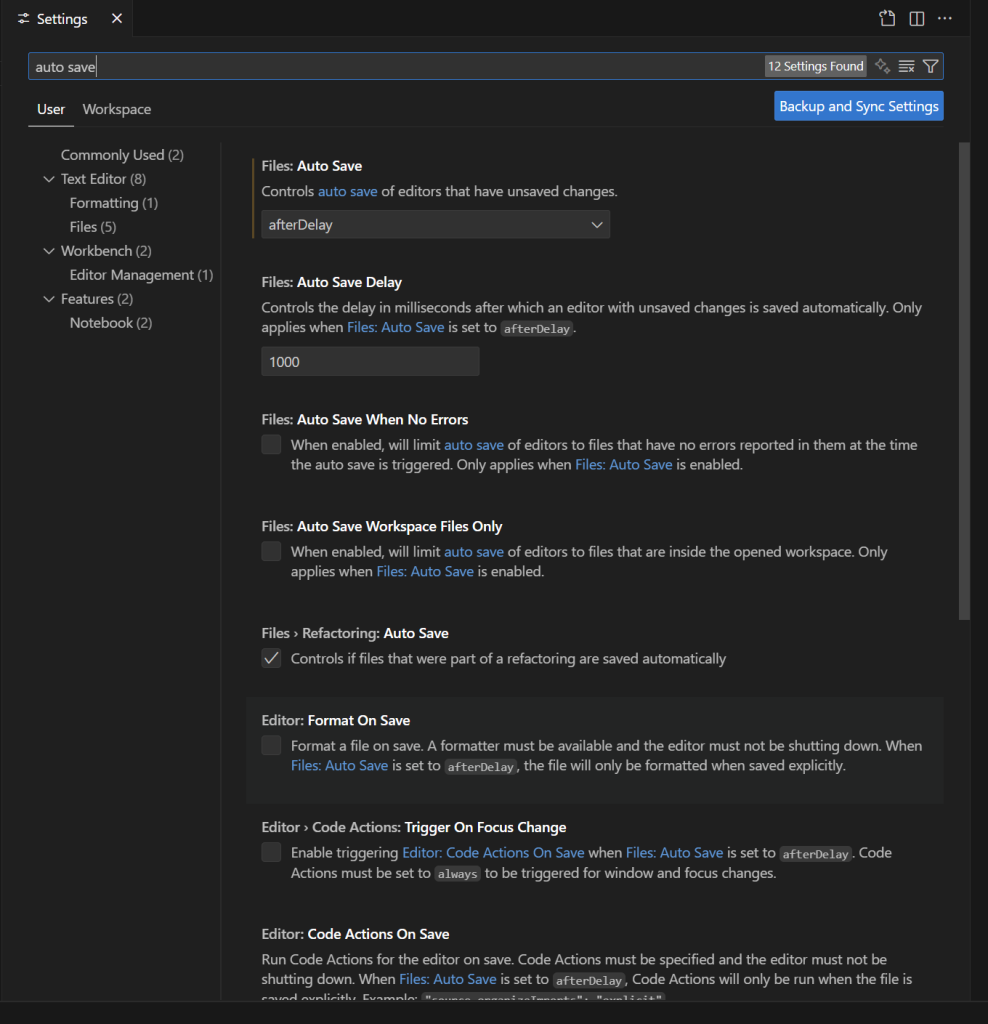
For advanced options:
- Press Ctrl + comma to open Settings.
- Search for “Auto Save” in the search box.
- Review and change the settings.
Note: by default, settings apply to all workspaces. If you want to rescope the settings to your current workspace only, then click Workspace under the search box. You will see the same settings except they will apply to the workspace instead of your user account.
List of Auto Save Settings
Here is a walkthrough of the settings related to auto saving.
Files:Auto Save
This is the main setting that enables or disables autosaving.
off | Auto saving is disabled (default) |
afterDelay | Changes are automatically saved after a delay. You can define the length of the delay (default 1 second) with the Auto Save Delay setting, which is right underneath. Note that if you toggle auto saving through the File menu rather than settings, VS Code will select afterDelay. |
onFocusChange | Changes are automatically saved when the editor loses focus. |
onWindowChange | Changes are automatically saved when the window loses focus. |
- Default:
offorafterDelay(when toggling through the File menu) - JSON File Key:
files.autoSave
Files:Auto Save Delay
Specifies the number of milliseconds to wait until a change is automatically saved. Avoid too short of a delay such that every keystroke results in a disk operation. The default is 1 second; experiment until you find the delay you prefer.
- Default: 1000 milliseconds
- JSON File Key:
files.autoSaveDelay
Files:Auto Save When No Errors
Specifies whether a file is auto-saved only if no errors are reported.
- Default:
false - JSON File Key:
files.autoSaveWhenNoErrors
Files: Auto Save Workspace Files Only
Specifies whether auto-save is limited to files in the current workspace. When enabled, if you open a file outside of the workspace (e.g., right-clicking an outside file and opening in Visual Studio Code), that file will not be auto-saved.
- Default:
false - JSON File Key:
files.autoSaveWorkspaceFilesOnly
Settings JSON
When scoping the setting to the current workspace, VS Code will create or update the file .vscode/settings.json. This JSON file contains your workspace-specific settings.
{
    "files.autoSave": "afterDelay",
    "files.autoSaveDelay": 1000,
    "files.autoSaveWhenNoErrors": false,
    "files.autoSaveWorkspaceFilesOnly": false
}Git users: If you want to enforce the settings for all users of the repository, commit the file into Git. If you want to keep the setting to yourself without the file appearing as a pending change, add the file to .gitignore (or equivalent).
# .gitignore is an optional text file in the root of your Git repository.
# Each line specifies a folder or file that Git should ignore.
# Comments start with a hash (#) character.
.vscode/settings.jsonFrequently Asked Questions
The default delay is 1 second (specified as 1000 milliseconds). You can change the delay in Settings.
You can undo your recent changes with Control-Z. You can also entirely revert the change by discarding changes in Git. Auto-Save works nicely for projects in Git because you can easily revert to the last committed version.
References
- Basic editing (code.visualstudio.com) – “However, it’s easy to turn on Auto Save, which will save your changes after a configured delay or when focus leaves the editor. With this option turned on, there is no need to explicitly save the file…“

 You are free to share and adapt this content for any purpose as long as you give appropriate credit in a reasonable manner.
Leave a Reply