
The Microsoft Teams PowerShell module enables you to perform various administrative tasks with Teams. You can install this module with the Install-Module cmdlet.
Use Install-Module to install the Teams PowerShell module
To install under your user account (available only to you):
Install-Module -Name MicrosoftTeams -Scope CurrentUserTo install globally for all users (requires Administrator rights):
Install-Module -Name MicrosoftTeamsIf you get “Administrator rights are required“
If you get an error that Administrator rights are required, you must restart PowerShell as an administrator. See Start PowerShell as an administrator – 5 easy ways.
If you get “NuGet provider is required to continue“
You may see a warning that NuGet provider is required to continue.
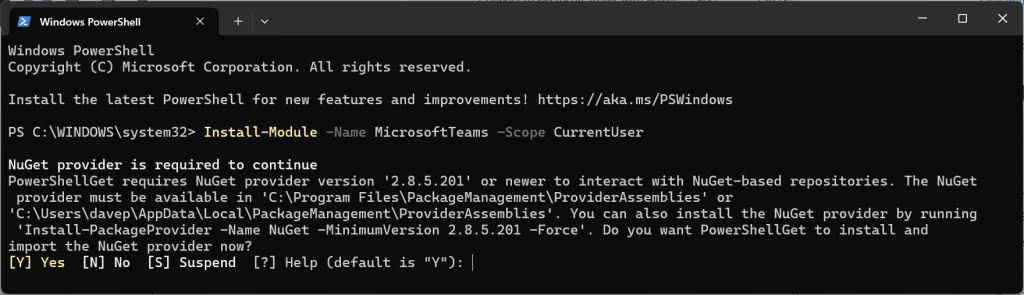
This is normal if you have not yet installed NuGet. NuGet is Microsoft package manager for distributing PowerShell modules, and it is safe to install. If you get this prompt, then you need to install or update NuGet. Enter Y when prompted.
If you get “Untrusted repository“
You may be warned about an Untrusted repository.
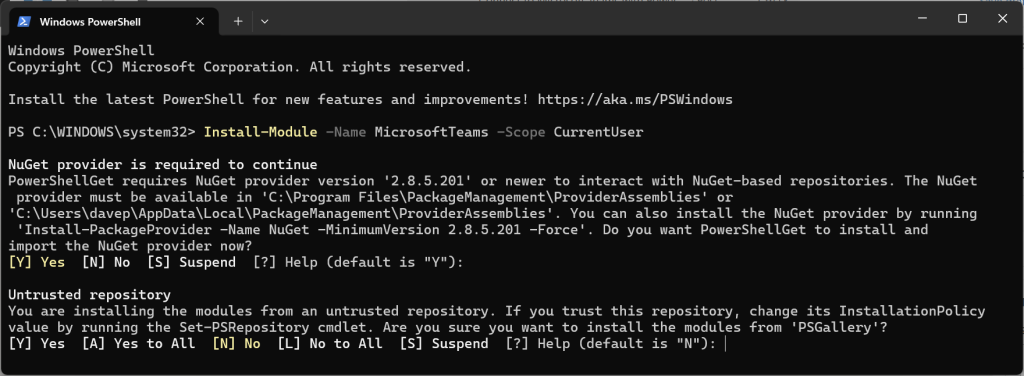
Look for PSGallery at the end of the last line above the prompt.
- If you see PSGallery, you can safely enter Y.
- If you see any other repository name, then abort and contact your admin.
This warning is normal. PSGallery is the name of the global repository used by Microsoft to distribute PowerShell modules. For security purposes, Windows is not configured to trust this or any repository, so everyone gets this message.
If you get “The following commands are already available“
This means there is a conflict with a command name. A command exported by the Teams PowerShell module conflicts with a command already installed on your system. You can force installation with the -AllowClobber parameter. For example:
# For just you...
Install-Module -Name MicrosoftTeams -AllowClobber

# For all users
Install-Module -Name MicrosoftTeams -Scope CurrentUser -AllowClobberConfirm installation of the Teams PowerShell module
Get-Module -ListAvailable MicrosoftTeamsYou should see a list with MicrosoftTeams under the name column.
Reference
- Install Microsoft Teams PowerShell – Microsoft Teams | Microsoft Learn – This article explains how to install the Microsoft Teams PowerShell module using PowerShell Gallery.

 You are free to share and adapt this content for any purpose as long as you give appropriate credit in a reasonable manner.
Leave a Reply