
The bookmarks bar (also known as the bookmarks toolbar or the favorites bar) provides quick access to your favorite websites. By default, most browsers hide the bar to maximize screen space, but you can toggle visibility in several ways.
Before going any further, try this:
In most desktop browsers, you can press Control+Shift+B (Windows) or Command+Shift+B (MacOS) to toggle the bookmarks bar.
This keyboard shortcut is the fastest way to show and hide the bookmarks bar whenever you need it. It works in Chrome, Edge, Firebox, and Brave, but not Opera (although you can create the shortcut in Opera, see below).
The rest of this document has instructions for each browser:
Toggle the Google Chrome bookmarks bar
Press Control+Shift+B to toggle the bookmarks bar in Google Chrome. Alternately:
- Click the three dots in the top-right corner of the browser
- Hover over Bookmarks and lists…
- Click Show bookmarks bar (or Hide bookmarks bar)
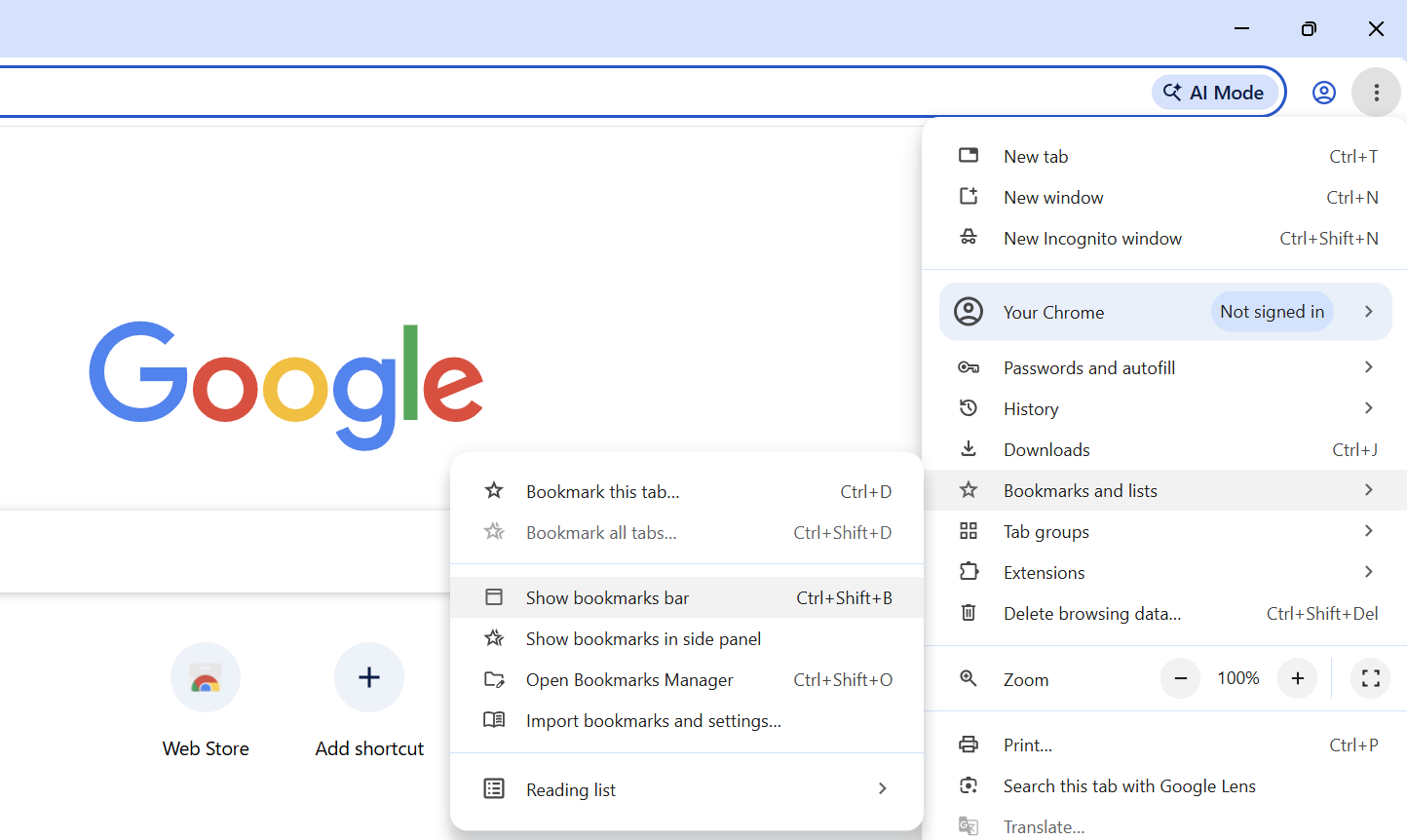
To learn more about bookmarks in Chrome, see Create, find and edit bookmarks in Chrome (support.google.com).
For learn about other keyboard shortcuts in Chrome, see Chrome keyboard shortcuts (support.google.com).
Toggle the Microsoft Edge favorites bar
Press Control+Shift+B to toggle the favorites bar in Microsoft Edge. Alternately:
- Click the three dots in the top-right corner of the browser
- Select Settings from the menu
- Search for “favorites bar”
- Change the option to either:
- Always
- Never
- Only on new tabs
For more Edge keyboard shortcuts, see Keyboard shortcuts in Microsoft Edge (support.microsoft.com).
Toggle the Mozilla Firefox bookmarks toolbar
Press Control+Shift+B to toggle the bookmarks toolbar in Mozilla Firefox. Alternately:
- Right-click an empty area of the tabs at the top of the browser window
- Hover over Bookmarks Toolbar
- Select either:
- Always Show
- Only Show on New Tab
- Never Show
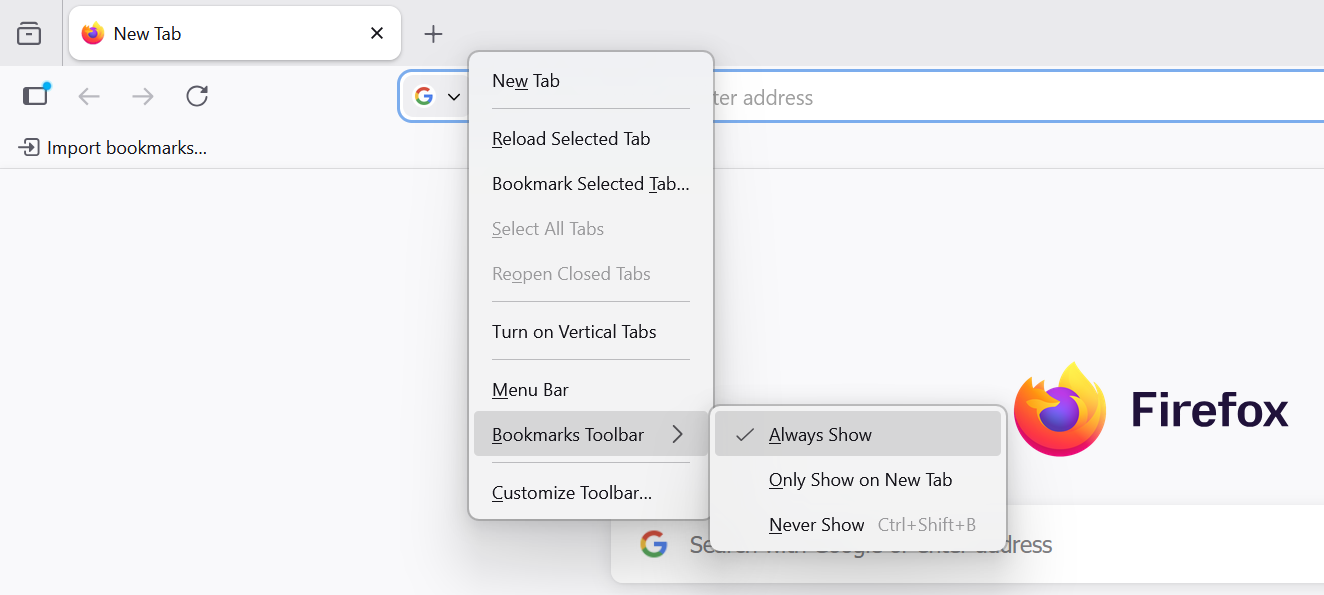
To learn more about the bookmarks bar, see Bookmarks Toolbar – Display your favorite websites at the top of the Firefox window (support.mozilla.org).
For more Firefox keyboard shortcuts, see Keyboard shortcuts – Perform common Firefox tasks quickly (support.mozilla.org).
Toggle the Brave bookmarks bar
Press Control+Shift+B to toggle the bookmarks bar in Brave. Alternately:
- Click the button that has three horizontal lines in the top-right corner
- Hover over Bookmarks and lists
- Hover over Show bookmarks bar and select either:
- Always
- Never
- Only on the new tab page
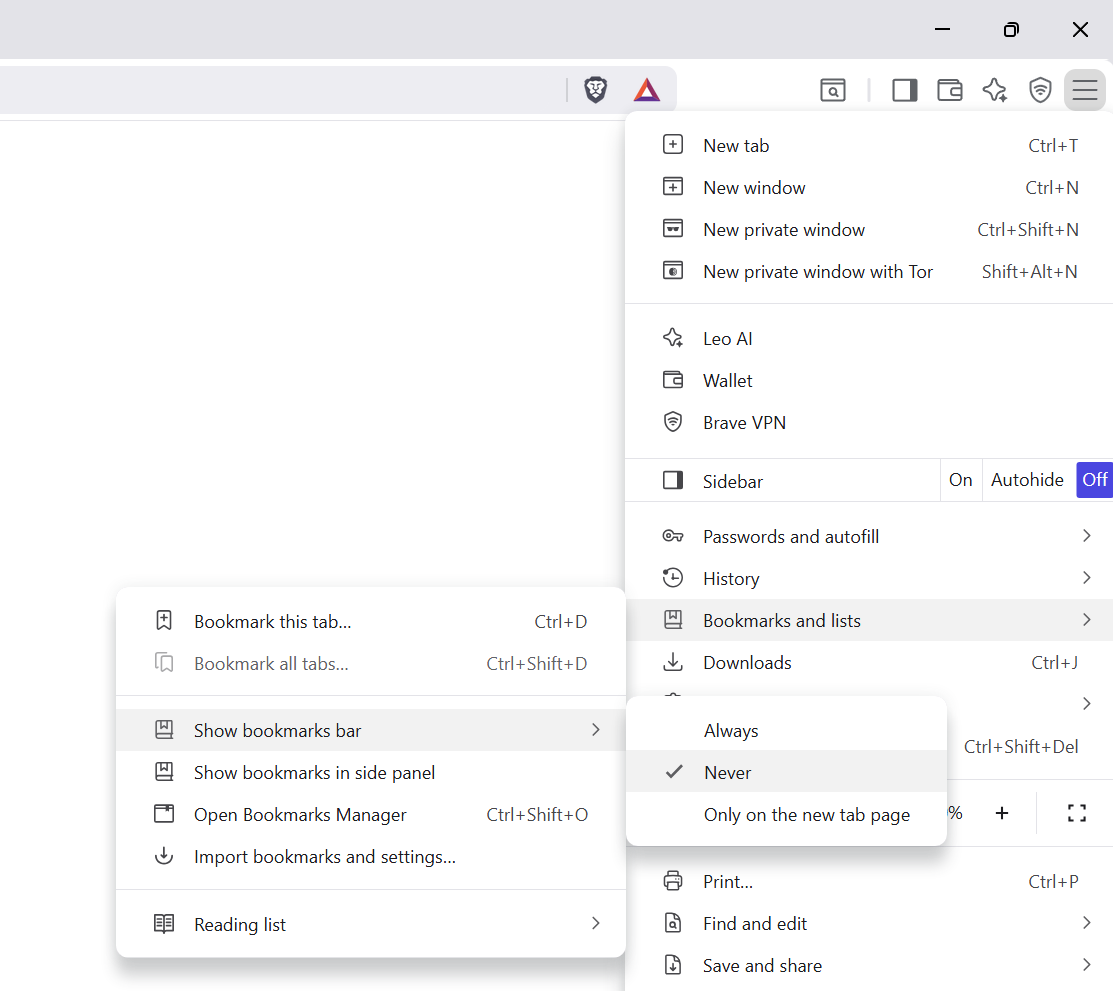
For more Brave keyboard shortcuts, see What keyboard shortcuts can I use in Brave? (support.brave.app).
Toggle the Opera bookmarks bar
To use the mouse only:
- Click the button that has three horizontal lines near the top-right corner
- Scroll down and find the Layout section of options
- Toggle Show bookmarks bar
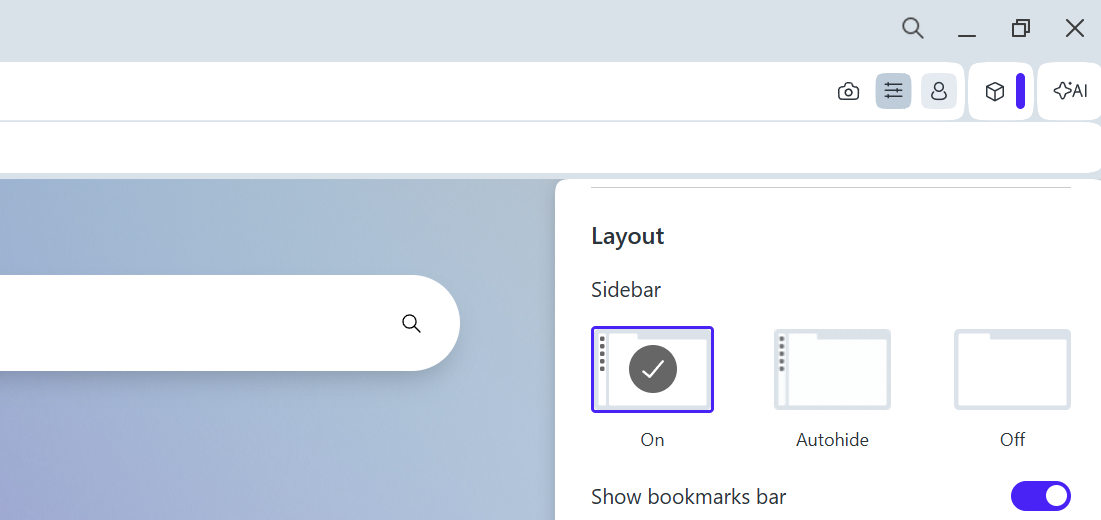
Add a custom keyboard shortcut to toggle the bookmarks bar in Opera
Unlike other browsers, Opera does not support the Control+Shift+B keyboard shortcut directly. However, it is possible to add the shortcut:
- Press Alt-P to open settings
- Search for and click Configure shortcuts
- In the Search shortcuts box, start typing Show bookmarks bar
- Note: this is a different search box than the one you used to find the settings page. The shortcut search box is lower on the screen.
- Locate and hover over Show bookmarks bar
- Click Type a shortcut.
- Nothing will happen (no UI change) once you click Type a shortcut. This is OK. Opera is waiting for you to press a keystroke.
- Press Control+Shift+B or the keystroke of your choice
- Click Yes, replace to confirm your keystroke
For more Opera keyboard shortcuts, see Shortcuts – Opera Help (help.opera.com).

 You are free to share and adapt this content for any purpose as long as you give appropriate credit in a reasonable manner.
Leave a Reply