
You have three options for automatic updates in WordPress:
- All new versions of WordPress
- Maintenance and security releases only
- No automatic updates
Be sure to configure backups
Most WordPress updates are safe but occasionally a plugin will break. Having a recent backup will save you time. However, unlike automatic updates, automatic backups must be performed through a plugin or your hosting provider. Refer to:
Toggle automatic updates through the WordPress admin dashboard
- Sign into your WordPress site with an admin account.
- Navigate to Dashboard > Updates from the side menu.
- Look at the sentence that describes your current setting.
If you see This site is automatically kept up to date with maintenance and security releases of WordPress only, then you will get minor updates but not major updates (e.g., 7.0).

This is the default. You will not get major updates because they are most likely to break plugins. To get major updates, click Enable automatic updates for all new versions of WordPress. The change will take effect immediately.
If you see This site is automatically kept up to date with each new version of WordPress, then you will get both major and minor updates.
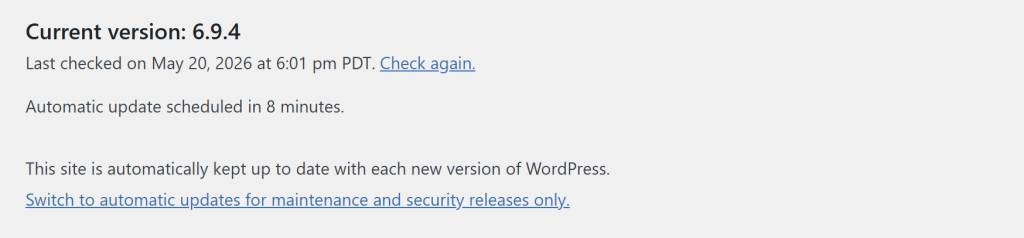
To switch back to minor updates only, click Switch to automatic updates for maintenance and security releases only. The change will take effect immediately.
Disable automatic updates entirely with the WP_AUTO_UPDATE_CORE setting
If you wish to disable even minor updates to WordPress, you can set the WP_AUTO_UPDATE_CORE setting in wp-config.php. This is not recommended unless you need absolute control over your deployment, e.g., you are running specific versions of WordPress for development and testing.
The WP_AUTO_UPDATE_CORE setting has three possible values:
define('WP_AUTO_UPDATE_CORE', true);    // Update major and minor
define('WP_AUTO_UPDATE_CORE', 'minor'); // Update minor only (default)
define('WP_AUTO_UPDATE_CORE', false); // Disable all core updatesIf you are familiar with wp-config.php, then add the desired line to your configuration file. Otherwise, note that wp-config.php contains various settings used by WordPress. WordPress does not supply an editor directly, but you can use a plugin or other tools to change the file. Refer to the following guide:
If you are not sure where to insert the setting, it is safe to add immediately above the line that says “That's all, stop editing! Happy publishing.” This line is located toward the end of the file. Blank lines are OK. Example:
define('WP_AUTO_UPDATE_CORE', true);

/* That's all, stop editing! Happy publishing. */
 You are free to share and adapt this content for any purpose as long as you give appropriate credit in a reasonable manner.
Leave a Reply