
By default, the status bar in Microsoft Word shows the total number of words in the current document. If you select a portion of text, the status bar instead shows the number of words in that selection. Sometimes you need to know the total characters instead of the words. There are several ways to pull up this information in Word, and you can customize the status bar to show the information at all times.
How to show word and character counts
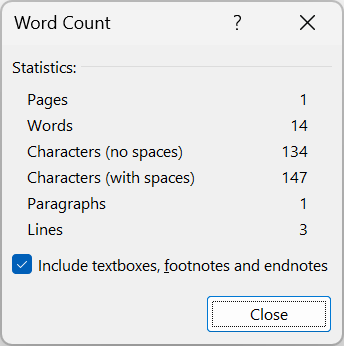
There are two ways to show word and character counts:
- Click Review > Word Count on the top menu, or
- Click the word count in the status bar on the bottom of the page
In both cases, you can select text prior to opening the statistics. If text is selected, only that selection is counted.
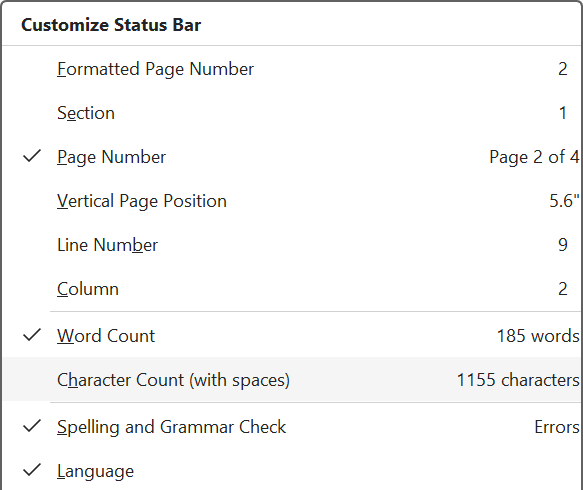
How to always show character count in the status bar
You can customize the status bar to show the number of characters (with spaces) in the current document or text selection. Right-click the status bar and click Character Count (with spaces).
Tip: Be aware of the trailing space
In Word, you can easily select a word or paragraph:
- Double-click a word to select the entire word
- Triple-click a word to select the entire paragraph containing the word
Be aware that Word will select an extra space after the word or paragraph. To illustrate, carefully review the following selection and notice a trailing space has been selected. This trailing space is included in the character count, so you may need to subtract it from the total count depending on your needs.
this is a selection
Reference
- Show word count – Microsoft Support – Word counts the number of words in a document while you type. Word also counts pages, paragraphs, lines, and characters.

 You are free to share and adapt this content for any purpose as long as you give appropriate credit in a reasonable manner.
Leave a Reply